

Instagram's messaging feature lets you connect with friends, followers, and customers instantly. You can chat one-on-one or in group conversations on mobile and desktop by tapping the Messenger icon to open your inbox. Send text, photos, videos, voice messages, or share posts — all in one place. Instagram lets you react to messages with emojis and links directly to Facebook Messenger when both accounts are connected.
In 2026, Instagram has made DMs one of its most important features. Reels and DMs now sit in the two most prominent spots in the app's navigation bar, reflecting how central messaging has become to the platform. Whether you're a casual user or a growing brand, knowing how to reply to a message on Instagram quickly and effectively can make a real difference to your engagement and growth.
�� NEW IN 2026: Instagram's redesigned nav bar now places DMs as the third tab: Home → Reels → DMs → Search → Profile. Your inbox has never been easier to reach.
If you're using Instagram on a PC or Mac, follow these steps:
1. Click the Direct Messages icon in the left sidebar.
2. Select the person or group you want to reply to.
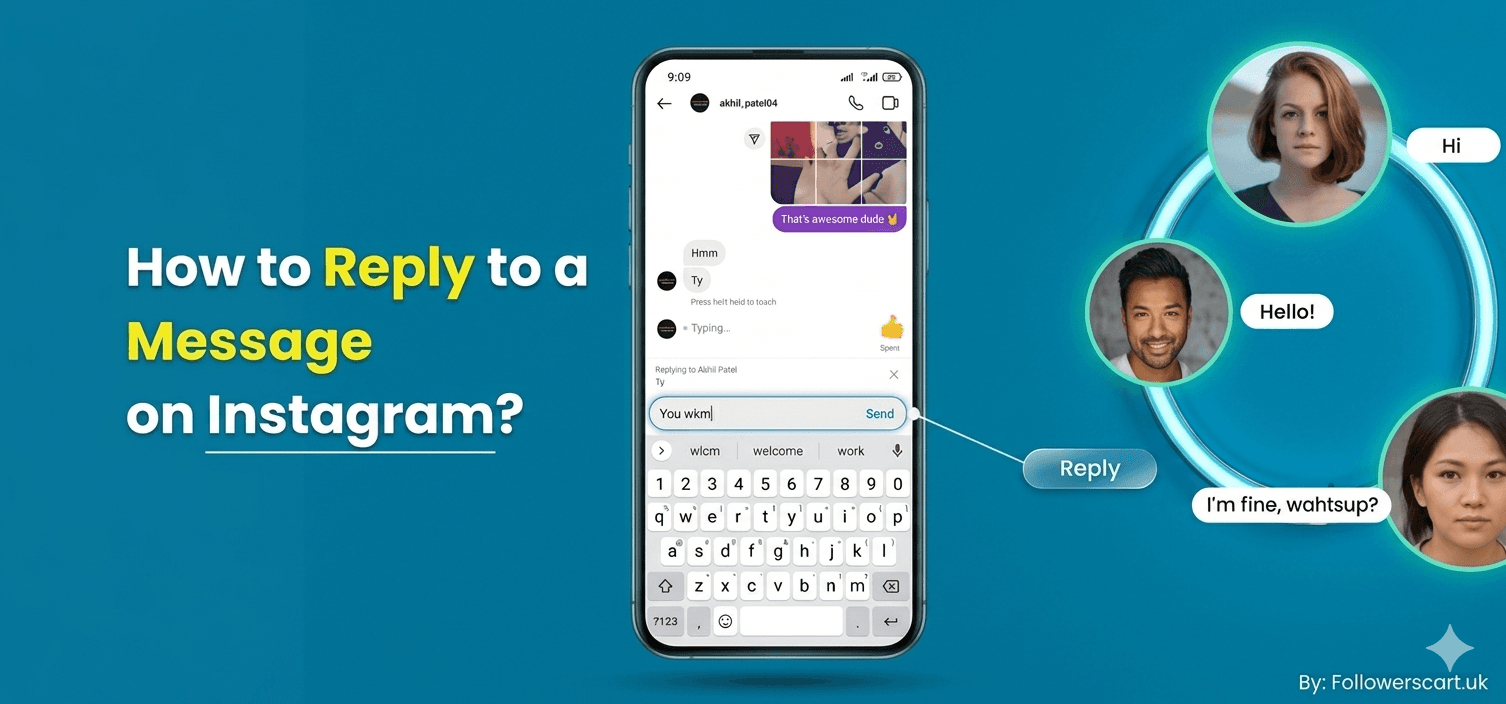
3. To reply to a specific message, hover over it — a curved Reply arrow appears. Click it.
4. Type your message in the text box at the bottom and press Enter or click Send.
5. You can also attach emojis, voice notes, photos, or videos as needed.
�� Desktop tip: You can now use Multi-Select Filters at the top of your inbox to sort by story replies, unread messages, follower status, or verified accounts — great for managing high-volume inboxes.
The Instagram app on Android is one of the fastest ways to stay in touch with friends and followers. Here's how to reply to Instagram DMs on Android:
1. Open the Instagram app and tap the DMs icon (third tab in the bottom nav bar).
2. Select a conversation to open it.
3. To reply to a specific message: long-press it and tap "Reply," or swipe right on the message.
4. Type your response and tap "Send."
5. A "You replied" note appears above your message for context.
�� Swipe right on any message for the fastest reply gesture on Android — no long-press needed.
�� NEW IN 2026: Voice notes in DMs are now up to 5 minutes long on Android, and Instagram auto-transcribes them so recipients can read or listen.
Replying to Instagram DMs — whether for business or personal use — builds trust, improves client loyalty, and strengthens your brand reputation. Private messaging is ideal for resolving disputes, explaining products, or nurturing partnerships.
1. Open the Instagram app and tap the DMs icon (third tab in the bottom nav bar).
2. Open the conversation you want to reply to.
3. Long-press the specific message and tap "Reply," or swipe right on it.
4. Type your reply in the text box at the bottom and tap the blue Send button.
�� NEW IN 2026: You can now draw directly on your DM screen on iPhone — tap the draw icon in any conversation to sketch, annotate, or get creative in your replies.
Instagram Stories are temporary posts that disappear after 24 hours. They appear as circles at the top of your feed and can include videos, stickers, music, GIFs, polls, questions, quizzes, and links. Stories are ideal for sharing everyday moments, announcements, or behind-the-scenes content without cluttering your main profile.
To reply to an Instagram Story:
1. Open the Instagram app.
2. Tap on the Story you want to reply to at the top of your feed.
3. Tap the text box at the bottom that reads "Send message..."
4. Type your reply, add an emoji, or share a music sticker.
5. Tap "Send" — your reply goes directly to that person's DM inbox.
�� NEW IN 2026: Instagram Stories now support public comments. Tap the comment icon (bottom-left of the Story) to leave a visible reply. Only mutual followers can comment on each other's Stories.
�� NEW IN 2026: You can now share songs directly in DMs and as Story replies using Instagram's built-in music sharing — no need to leave the app or switch to Spotify.
You don't always need to type a full reply. Instagram lets you react to any message with an emoji:
• Long-press a message to open the emoji reaction bar.
• Tap any emoji to send your reaction — the sender receives a notification.
• Double-tap a message to send a quick ❤️ heart reaction instantly.
Instagram has transformed its DM inbox into a full-featured communication suite. Here are the most important new tools available in 2026:
You can now schedule Instagram DMs up to 30 days ahead. This is perfect for product launches, seasonal campaigns, or reaching followers in different time zones. To schedule a message: open a conversation, type your message, then long-press the Send button to pick a date and time.
Organise your DM inbox with custom folders. Sort conversations by customer segment, campaign, collaboration request, or priority. Combined with multi-select filters (story replies, unread, follower status, verified accounts), you can triage a busy inbox in seconds.
You can pin up to 3 messages within any conversation so important information — like an order number, address, or key question — never gets buried in a long thread. Long-press any message and tap "Pin."
Receiving DMs in another language? Long-press the message and tap "Translate" — a translated version appears instantly beneath the original. No third-party app needed. This is especially useful for UK businesses with international customers.
Instagram voice notes in DMs now support messages up to 5 minutes long, and the app automatically transcribes them so recipients can read or listen as they prefer — a huge accessibility and convenience win.
Teams can now manage a shared Instagram account without sharing passwords. Assign roles and control permissions so multiple people can handle DMs, comments, and posts without security risks — ideal for brands, creators with managers, or small businesses.
�� ⚠️ Important: Instagram is removing end-to-end encrypted DMs (E2EE) from May 8, 2026 due to low usage. If encrypted messaging matters to your business or personal use, Meta recommends switching to WhatsApp for E2EE conversations. Download your encrypted chat history before this date.
Instagram's Saved Replies feature stores pre-written answers to common questions — a huge time-saver for businesses handling hundreds of DMs daily.
To set up Saved Replies:
1. Switch to a Professional (Business or Creator) account.
2. Go to Settings > Business Tools > Saved Replies.
3. Tap the "+" icon to create a new reply.
4. Add a shortcut keyword (e.g., type "price" to auto-fill your pricing answer).
5. Write your reply text and save.
6. In any DM, type your shortcut and tap the suggestion that appears above the keyboard.
�� This feature is only available on Business and Creator accounts. Upgrade via Settings > Account > Switch to Professional Account.
One of the most effective DM tactics for brands in 2026 is the Comment-to-DM automation. Here's how it works: post an engaging Reel or carousel with a CTA like "Comment 'GUIDE' and I'll send you the free download." When someone comments, they automatically receive a DM — capturing a warm lead without manual effort.
You can set this up using tools like ManyChat or Meta's native automation. It's fully compliant with Meta's policies when used correctly.
�� NEW IN 2026: According to Meta, DMs and Reels now drive the majority of Instagram's growth. Brands that build Comment-to-DM flows are converting engagement into leads and sales at scale in 2026.
As your brand grows, managing Instagram DMs manually becomes unsustainable. Tools like NapoleonCat, ManyChat, and Meta Business Suite help you:
• Track and reply to messages from multiple accounts in one dashboard.
• Set automatic replies for frequently asked questions.
• Manage conversations in multiple languages with auto-translation (now built into Instagram too).
• Set up Comment-to-DM flows that convert Reel comments into DM conversations automatically.
• Protect your brand by auto-filtering spam and irrelevant messages.
1. Log into NapoleonCat and go to Auto-Moderation.
2. Create a rule based on a keyword (e.g., "price").
3. Write your custom auto-reply.
4. Schedule the rule to run 24/7 or during specific hours.
Meta Business Suite offers a free built-in automation tool with no third-party account required. Go to Business Suite > Inbox > Automation to set up instant replies, away messages, and FAQ responses.
�� If you manage a team, use Instagram's new Shared Account Access feature (2026) to assign DM roles without sharing your password.
AI-powered tools like Meta Business Suite, ManyChat, and Tidio let you:
• Respond to all messages from one unified inbox.
• Set up automated replies for common questions (pricing, hours, availability).
• Schedule responses during off-hours using Instagram's new native message scheduling.
• Analyse message trends to spot what your audience asks most often.
• Run Comment-to-DM lead generation flows on Reels and carousels.
�� Meta Business Suite is free and built directly into Instagram. It handles most small business needs without needing a paid third-party tool.
Facebook and Instagram messaging are connected via Meta. To manage both inboxes in one place:
1. Go to Instagram Settings > Messages and Story Replies.
2. Tap "Update Messaging" and follow the prompts.
3. Once connected, reply to both Facebook and Instagram messages from a single inbox.
�� ⚠️ Note: The Facebook–Instagram merged inbox is not yet available in all regions, including parts of the UK and Europe, due to data privacy regulations. Check your account settings to see if it's available for you.
If you want to limit how someone interacts with you, Instagram offers several options:
Restrict: Open the person's profile, tap the three dots (⋮), and select "Restrict." Their messages go to a separate request folder — and they won't know they've been restricted.
Mute: Hides someone's posts or stories from your feed without unfollowing them.
Block: Prevents the person from viewing your profile, posts, or sending you messages.
Report: Use this if someone is sending abusive or spam messages.
Unfollow: Stops their posts and stories from appearing in your feed, though they can still message you.
�� NEW IN 2026: Teen Safety (2026): Instagram now requires parental approval for users under 16 to go Live or disable the blurred images feature in DMs, which automatically blurs images suspected of containing nudity. This is part of Meta's broader Teen Accounts safety rollout.
Want to grow your Instagram faster?
Managing replies is just one part of building a strong Instagram presence. At FollowersCart UK, we help you grow with real UK Instagram followers, likes, views, and comments — so the people landing in your DMs are genuinely interested in what you offer. Trusted by UK creators since 2020.
Managing Instagram DMs in 2026 is faster and more powerful than ever. From the redesigned nav bar that puts your inbox front and centre, to new features like message scheduling, pinned messages, auto-translation, 5-minute voice notes, and Comment-to-DM automation, Instagram has built a full communication suite for individuals and businesses alike. By also using built-in tools like Saved Replies and free automation via Meta Business Suite, you can stay on top of every conversation — whether you're managing one account or several. In this guide, we covered how to reply to a message on Instagram across every device and scenario: desktop, Android, iPhone, Stories, and beyond. Stay organised, stay responsive, and you won't miss a single important message.

Emma Brown
Social Media Growth Strategist
Emma Brown is a social media growth strategist specializing in Instagram marketing for UK creators and small businesses. With 5+ years of experience, she focuses on organic growth, engagement, and audience building. She shares practical insights on Instagram algorithms and content strategy to boost visibility and conversions. She holds a degree in Digital Marketing from the University of Manchester.
Loading related articles...
Related Articles